
Device status on the map
Every device appears on the map color-coded by status:
- 🟢 ONLINE — connected, no active alarms.
- 🔴 ALARM — has an active alarm (blinking).
- 🟣 OFFLINE — no communication.
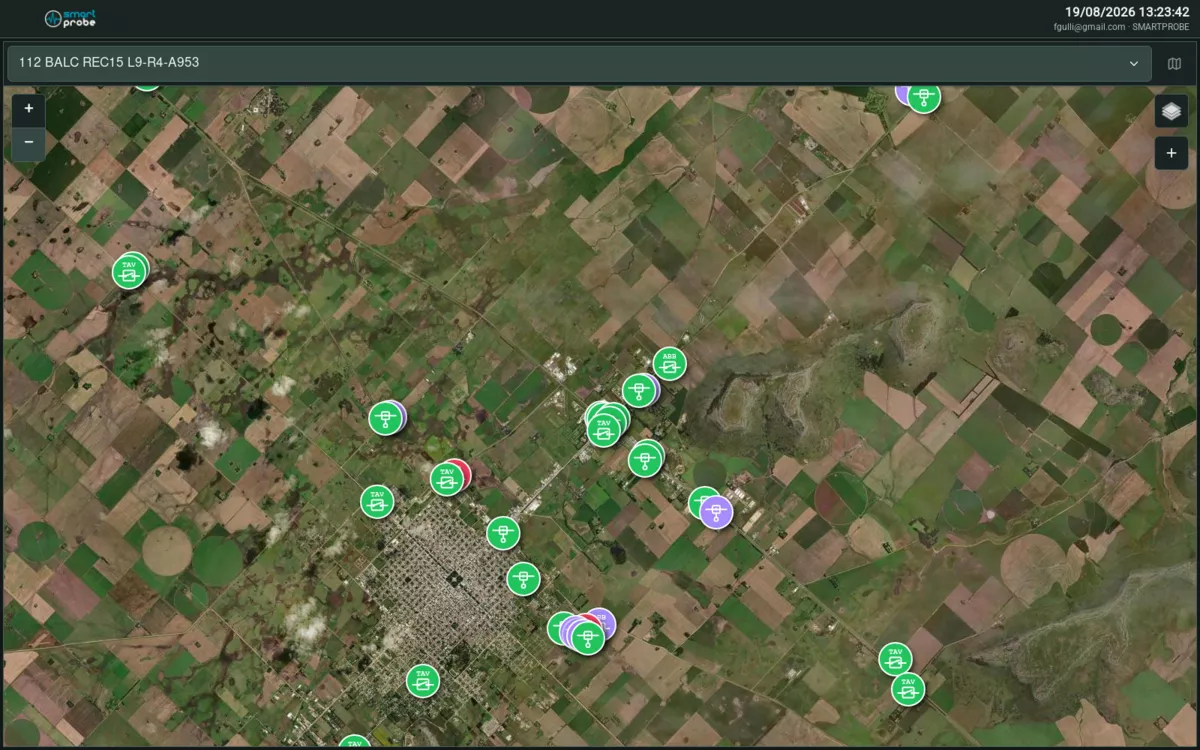 Map with devices and manual notices of different types.
Adding a manual notice
Tap the map’s tools icon and choose one of these options:
- 📍 Add marker — then tap the exact point on the map where you want to place it.
- 📡 Use my GPS location — uses your current position. If your browser can’t obtain it, you’ll be able to place the point manually.
You can also right-click (or long-press on mobile) directly on a point on the map and choose Add marker here.
The New marker form opens, with:
- Type: Notice, Scheduled maintenance, Ongoing work, Caution, Danger or Power outage — each with its own color.
- Message: up to 500 characters.
- Expiration (optional): the date and time the notice disappears on its own. Leave it blank and the notice stays visible until you delete it manually.
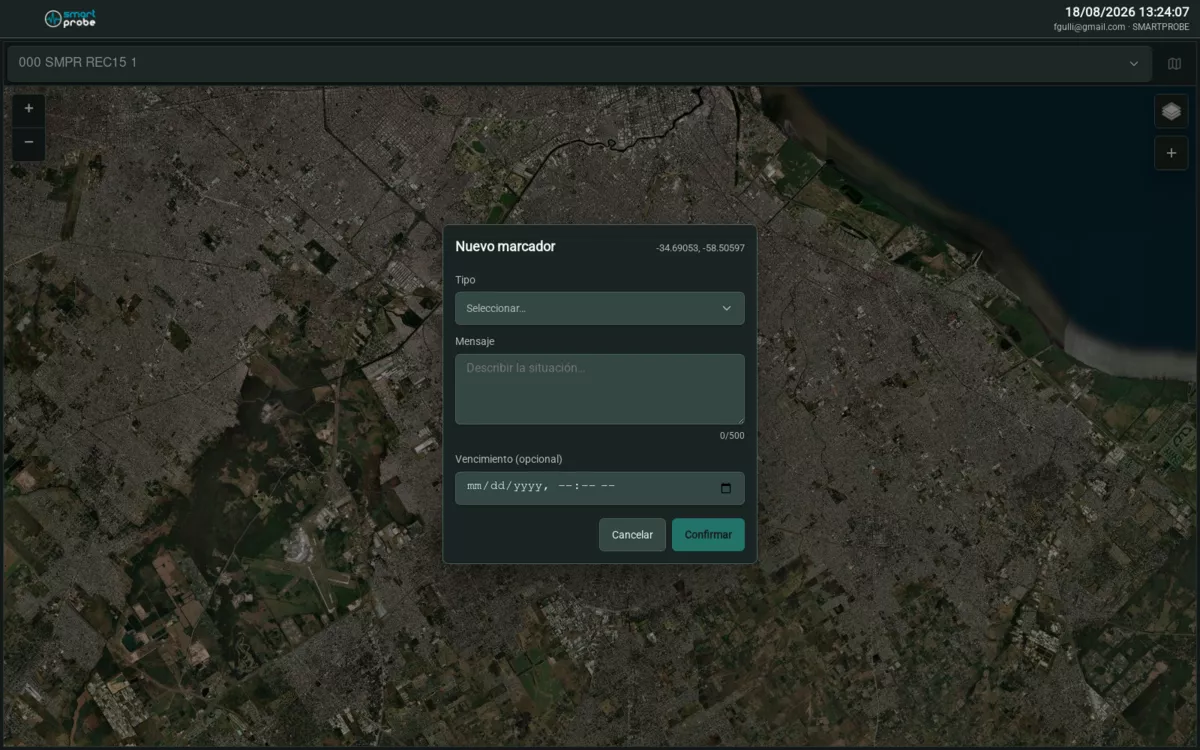 Form for creating a manual notice.
Confirm with the Confirm button. To delete it later, open the marker on the map and tap Delete.